Filter and grouping options |
  
|
Filter and grouping options |
|
You can group your projects in your project manager, using different options:
1.) Using the project type: You can set the project type in the project settings of each project. This project type can be used as a filter or grouping option in your project manager.
2.) Using the status: You can assign a status to every project.
3.) Using the priority: Prioritizing your projects sometimes helps organizing your workflow. Grouping by priority might help you get better organized.
4.) Using the progress: To keep an eye on the progress of a project it makes sense to use this grouping area.
5.) Using the start- and finish date: You've got a lot of projects? Make sure you group by start or finish to keep track of everything that needs to be done.
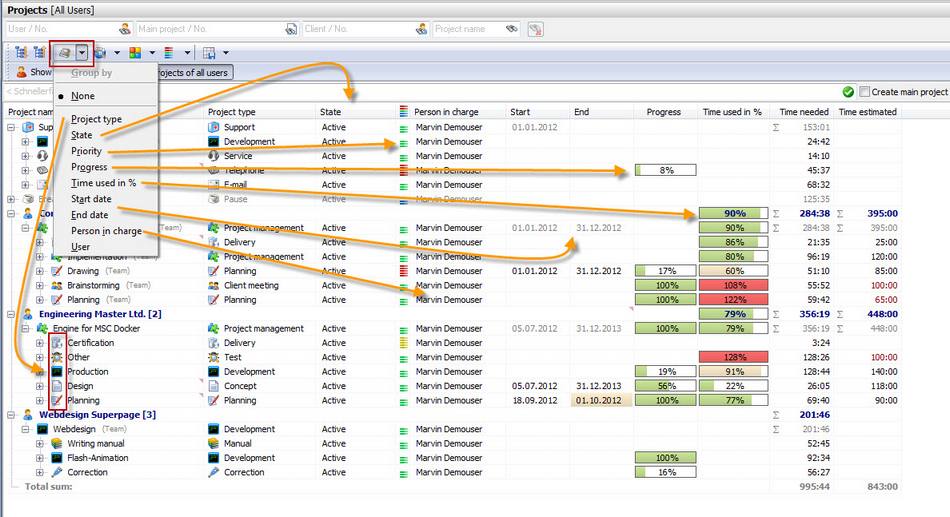
As soon as you've grouped your projects, the group level will be displayed in a green font. This is only for visual help to see, that you've grouped your projects. In our example screenshot, I've grouped by "project type".
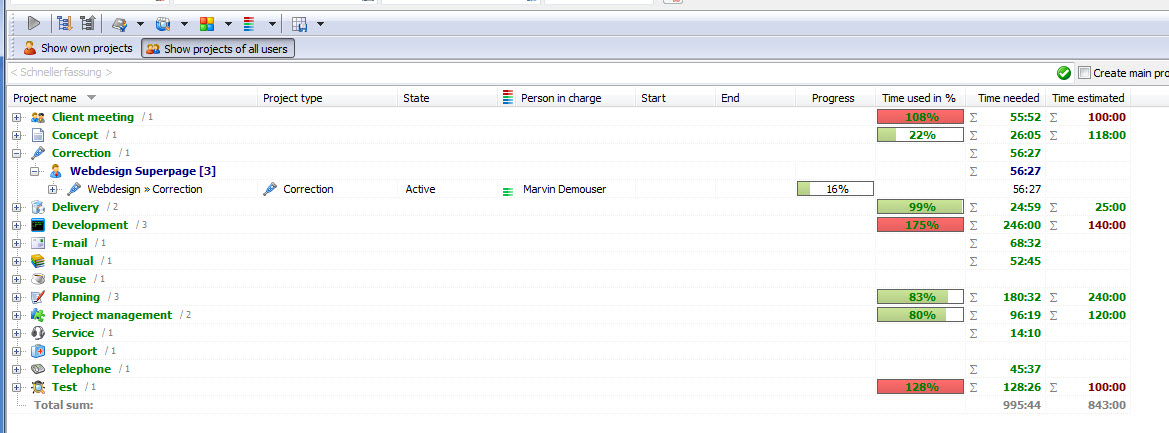
State
In Xpert-Timer there's seven project states to choose from. You cannot edit them, due to all the database queries, that are involved.
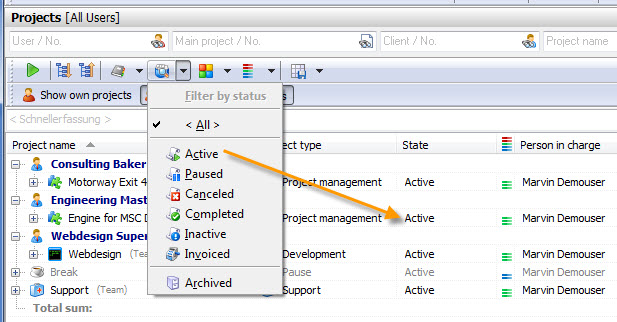
You can filter your projects by state as well.
1.) Active: All projects you are currently working on, should own this state.
2.) Paused: A project which is paused at the moment.
3.) Canceled: A project that's been canceled. .
4.) Completed: A finished project, that should be billed.
5.) Inactive: A planned project, that hasn't started yet.
6.) Billed: A finished and billed project, which should get the state "Archived" soon.
7.) Archived: These projects are completed and billed and should not be worked on any more.
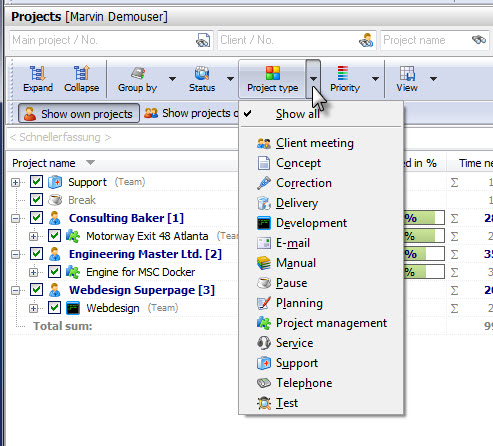
You can use project types as a filter criteria in your project list. Add the same project type to all projects you want to evaluate the time spent for at the end of the year. So if you assign the project type "Support" to all projects involving support activities, you could filter for this project type at the end of the year and you'll get the total hours spent on "Support". You can select multiple project types to display.
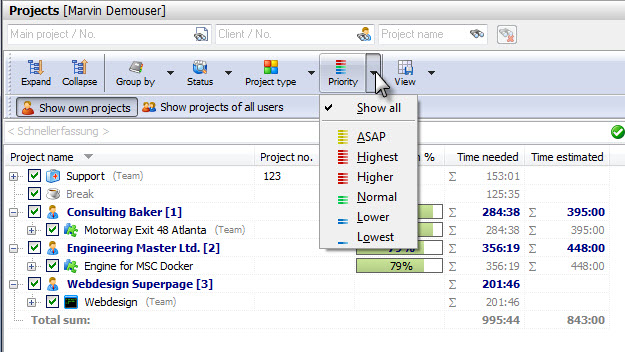
If you work on projects with different priorities, you can also filter for them. You can select multiple priorities to display.
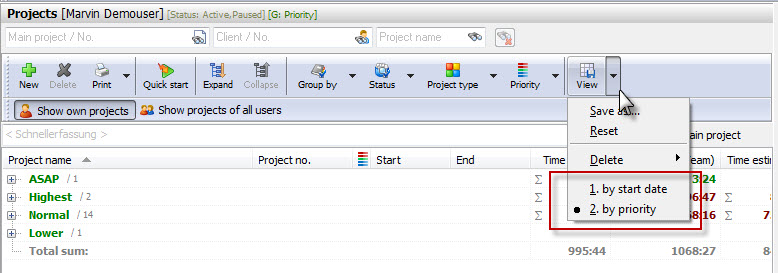
You can save all settings (filters and grouping) using the "View" button. Choose save as and give the view a name. Afterwards this view will be available in the drop down option on the view button.